Entering values
Values are the actual numbers for each period. KPI owners enter them in My work.
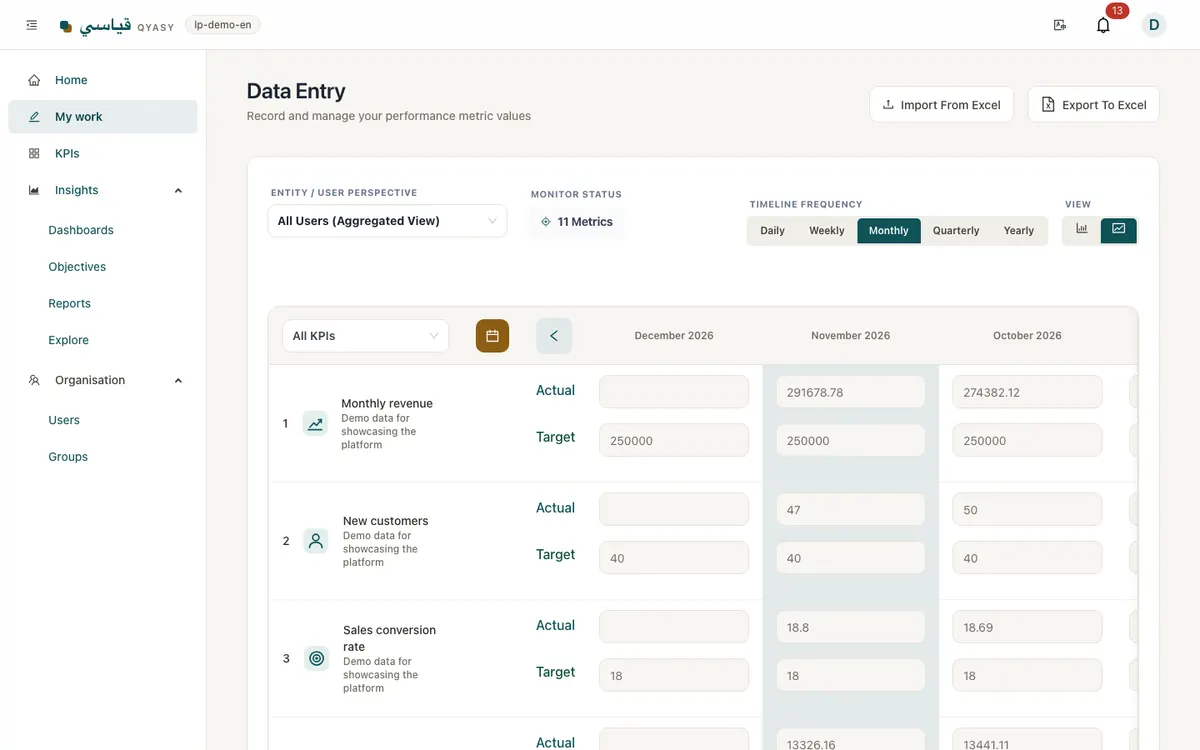
Enter values
- Open My work.
- Each row is a KPI you own; each column is a period. Due periods are highlighted.
- Type the actual value in the cell and save.
- The status colour appears straight away.
You can also enter values from a KPI's Data tab.
Hijri dates
If an admin turns on Show Hijri dates (Settings, About Company), period headers show the Hijri (Umm al-Qura) date next to the Gregorian one.
Evidence files
You can attach proof to a value, such as a signed report or an export from another system:
- Up to 10 files per value, each up to 10 MB.
- Common document, spreadsheet and image types are accepted.
- Files open as downloads for people who can see the KPI.
Enter values offline
In the installed app, if you lose the connection, values you enter are kept on your device. They are sent automatically when you are back online, and you see a message with how many were sent. Values kept offline belong to the person who entered them and are not shown to anyone else using the same device.
Values that arrive by themselves
Some values do not need typing:
- Calculated KPIs and roll-ups update from other KPIs (KPIs).
- Spreadsheet sync pulls values from Google Sheets or Excel Online every hour (Integrations).
- The API lets your systems send values (Integrations).
When values are locked
If your company uses period approval, an approved period is locked. Ask the approver to send it back if a value must change.
Ready to make performance clear to everyone?
Start free trial