KPIs
A KPI is a number you track over time against a target, such as "Customer satisfaction" or "Revenue". Open KPIs in the side menu to see them all.
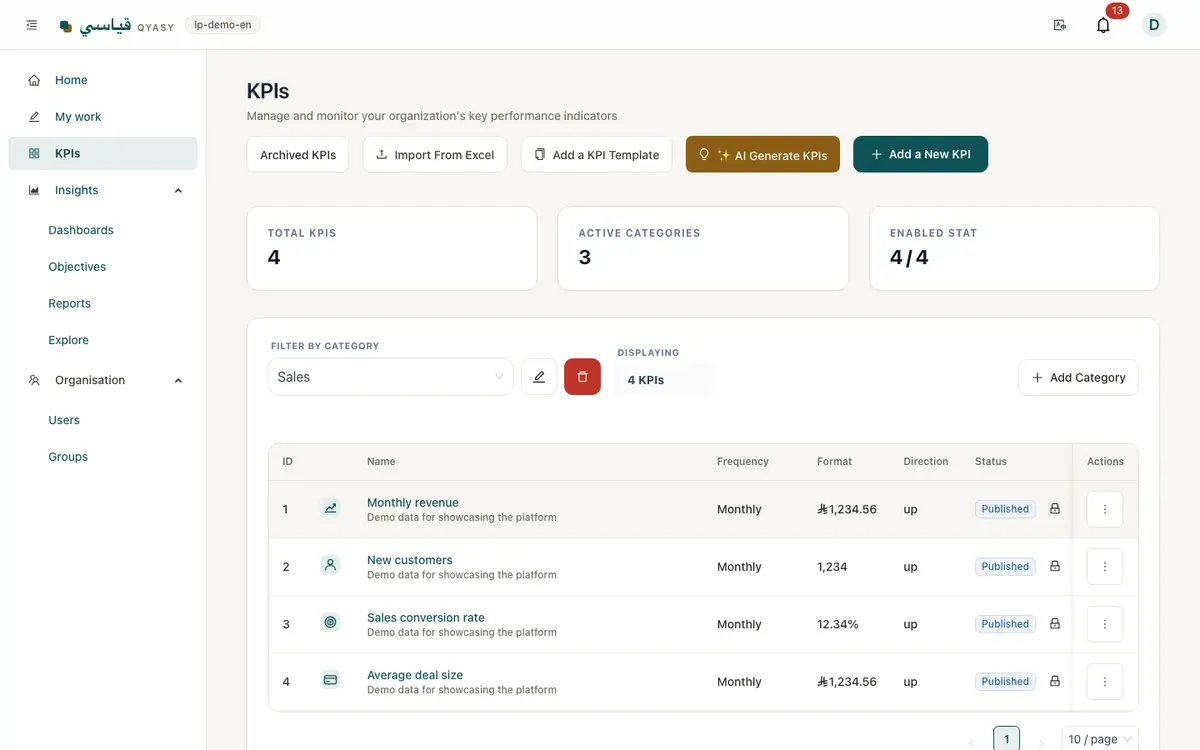
Create a KPI
- In KPIs, choose the add button.
- Give it a clear name and, if useful, a description that explains how it is measured.
- Choose the frequency: daily, weekly, monthly, quarterly or yearly. This decides which periods appear in data entry.
- Choose the format: number, percentage or currency (Saudi riyal by default).
- Choose the direction: higher is better, lower is better, or neither (for counts you only watch). Status colours follow this choice.
- Set the target for each period.
- Assign the owners: the people who enter values.
- Save.
Tip: start with fewer KPIs that people really own. Five well-kept KPIs tell you more than fifty empty ones.
Status and colours
Each period gets a status from its value compared with its target:
- On track (green): at or better than the target.
- At risk (amber): close to the target.
- Off track (red): clearly below the target.
The status uses the achievement percentage (actual compared with target). The default bands work for most KPIs. To change them, edit the KPI, open Status colours, turn on Custom bands for this KPI and set Amber from and Green from, for example amber from 80% and green from 95%.
Calculated KPIs
A KPI can be calculated from other KPIs with an equation, for example Revenue / Customers. Its values update by themselves when the KPIs it uses get new values, so nobody enters them.
KPI trees (roll-ups)
A parent KPI can add up or average its child KPIs, for example "Total sales" made of each branch's sales. Set this on the KPI's configuration tab. Roll-ups are available for a KPI that has no values entered by hand yet. The configuration tab shows the KPI tree.
The KPI page
Open a KPI to see its tabs:
- Overview: the trend chart, with markers where people left comments.
- Data: every period with target, actual and status, plus period approval and spreadsheet sync (Integrations).
- Actions and comments: corrective actions and comments (Actions and comments).
- Configuration: the KPI's settings and its KPI tree.
Archive a KPI
When a KPI is no longer used, archive it instead of deleting it. Its history stays available under Settings, Archived KPIs, and you can restore it later.
Ready to make performance clear to everyone?
Start free trial